
The litigation team gets a preservation letter. It asks for the usual things, email, chat, documents, and then a line that’s new: “including drafts, summaries and communications prepared with AI tools.” The general counsel forwards it to IT with one question. Do we keep what people asked Copilot, and can we get it back?
In most organizations the honest answer is “probably, partly, and we’d have to check.” That’s not a failure of anyone’s diligence. Copilot arrived as a productivity tool, and nobody asked Legal whether a prompt is a record. The questions Legal needs answered are specific, though, and the answers sit in settings IT already manages. Settle them before the first hold, not during it.
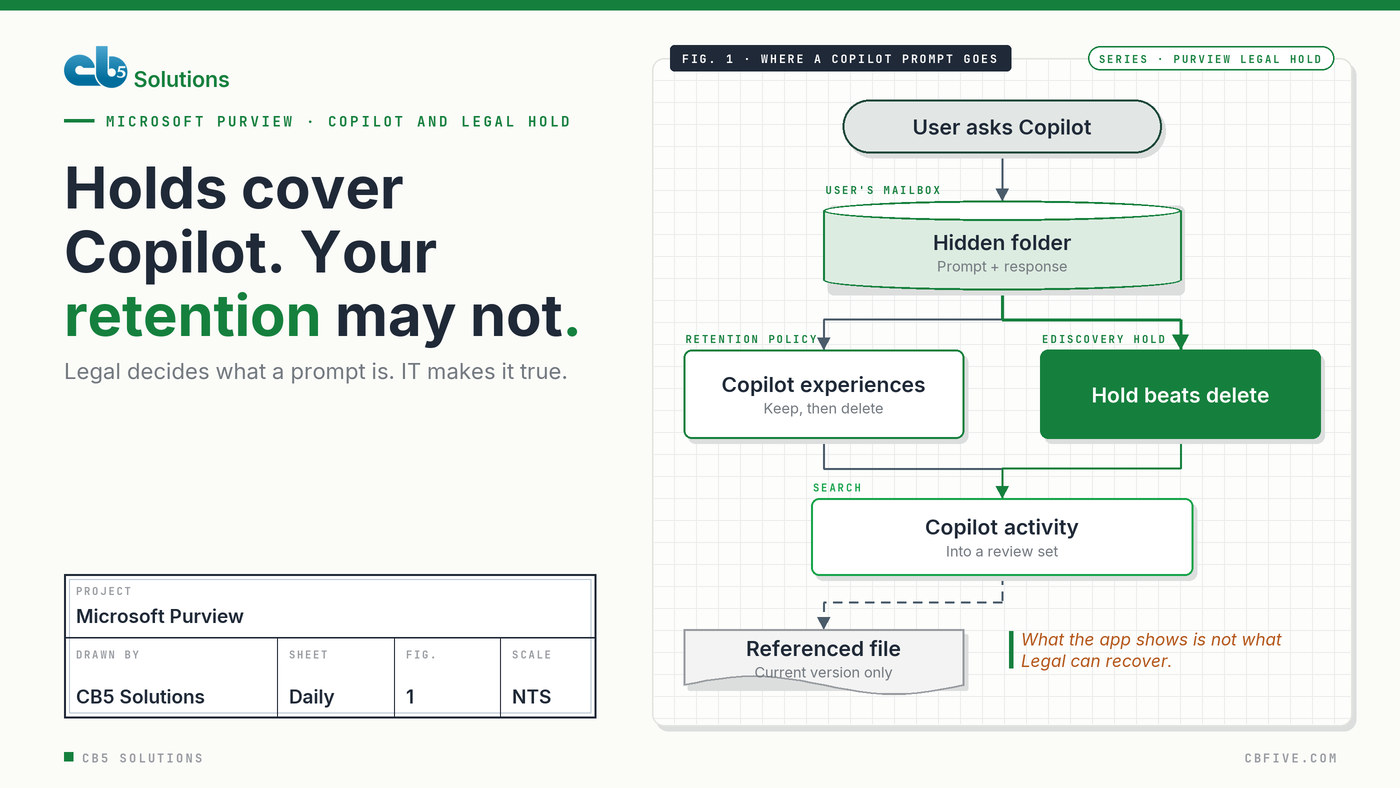
A prompt is stored like a message, in the user’s mailbox
Start with where the data actually lives, because everything else follows from it. Microsoft’s documentation for Purview (Learn about retention for Copilot & AI apps, Microsoft Learn, checked November 2026) says prompts and responses are copied into a hidden folder in the Exchange Online mailbox of the person who used Copilot. Users and admins can’t browse that folder. Compliance administrators can search it with eDiscovery.
Three things follow, and Legal should hear all three.
It’s per person. A Copilot conversation belongs to the custodian who had it, the same way their email does. Custodian-based preservation works.
It’s text, not the files. What’s captured is the prompt, the response, and the links and references in the response. The documents Copilot read to produce the answer stay where they were, under whatever retention those locations have.
Leavers don’t take it with them. When an employee’s account is deleted, their AI interactions that are subject to retention move into an inactive mailbox with everything else, and stay searchable.
The first decision belongs to Legal and records management, not IT: are AI interactions records, and for how long? The answer may differ by team. A trading desk and a marketing team rarely share a schedule for email, and there’s no reason they should for Copilot.
Your holds probably cover it. Your retention policy might not.
Here’s the good news for anyone running custodian holds already. Because the interactions sit in the user’s mailbox, an eDiscovery hold on that mailbox also preserves them. Retention’s first principle is that a hold beats a delete. If you’ve automated holds from group membership, as we described in Legal Holds on Autopilot, the people on hold are already covered.
Retention policies are where the surprises are. Copilot used to share a policy location with Teams chats, called “Teams chats and Copilot interactions.” Microsoft has since split them. New policies use separate locations, and the older combined policies keep working but can’t be edited once your tenant has the new ones. If your Teams chat retention was set for a reason that had nothing to do with AI, Copilot inherited it.
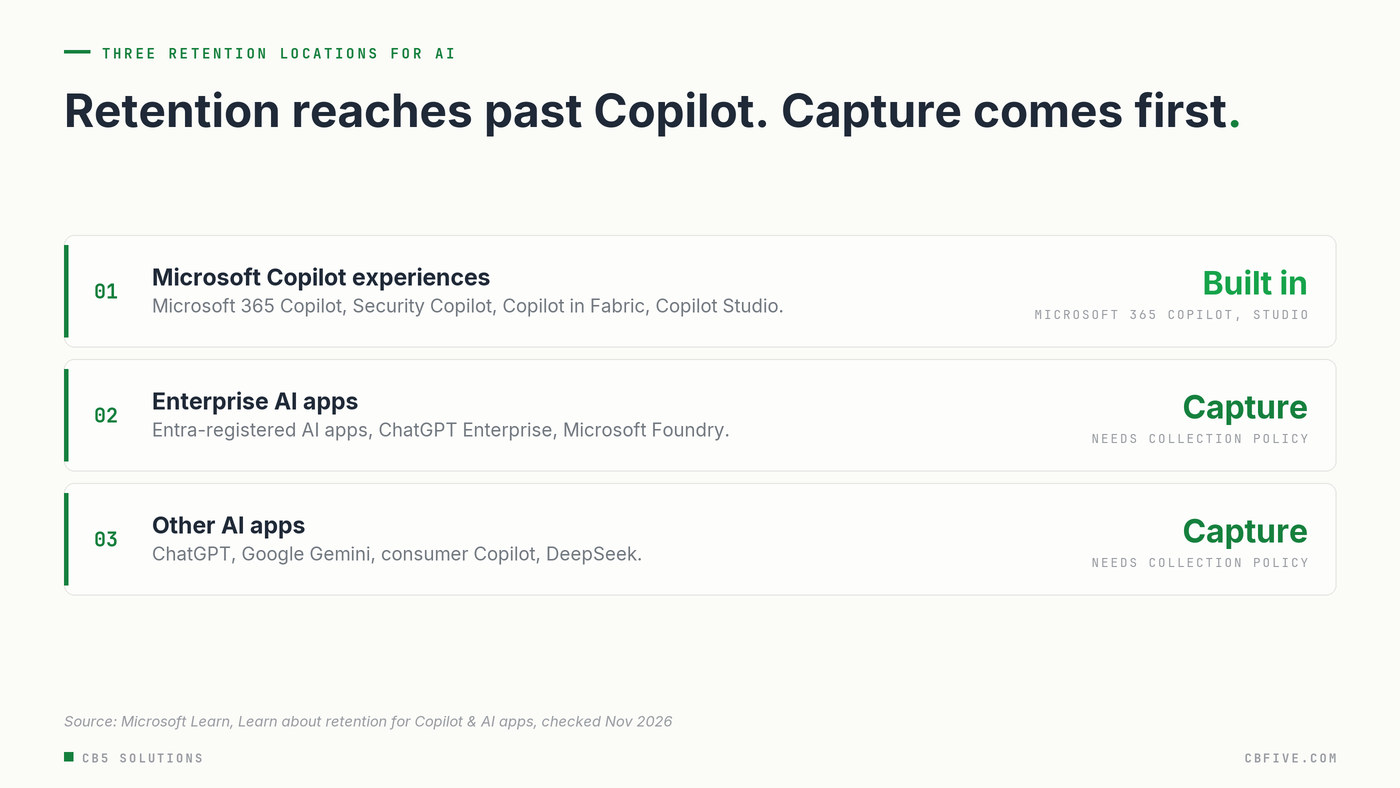
The new locations also reach past Microsoft 365 Copilot. There are three: Microsoft Copilot experiences, Enterprise AI apps and Other AI apps. The catch is in the small print. For anything other than Microsoft 365 Copilot and Copilot Studio, there’s nothing to retain until a Purview collection policy is set to capture the content. If your organization has sanctioned a second AI vendor, which we wrote about in The Second AI Vendor, check whether its conversations are being captured at all before anyone tells Legal they’re preserved.
When we reviewed a Copilot control framework with a large healthcare organization, the retention row was the one with the least certain answer. The first draft simply carried over the existing mailbox retention, which was different for different license groups. That’s a sensible starting point. It isn’t a decision, and nobody in Legal had been asked.
What comes back in a search, and what doesn’t
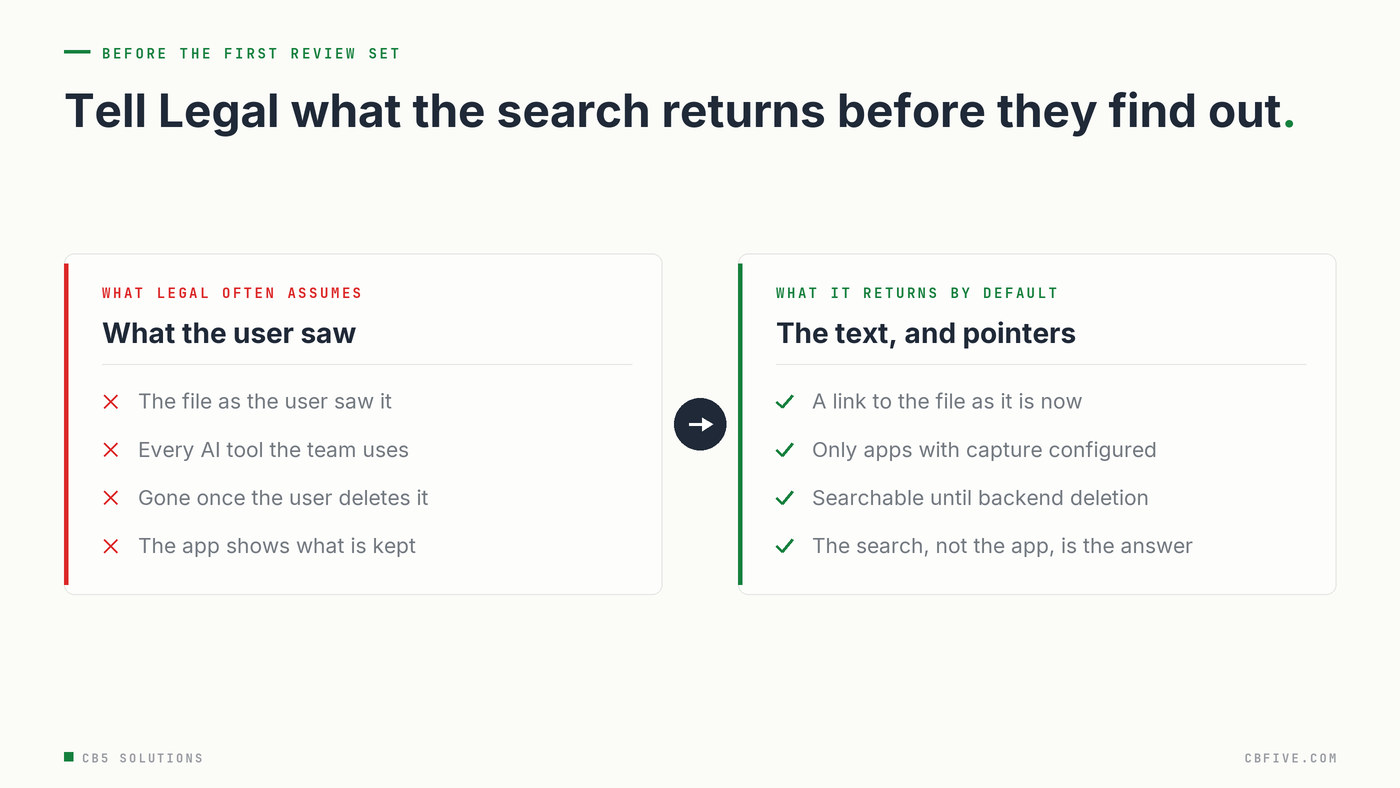
In Purview eDiscovery, AI interactions come back from a search of the custodian’s mailbox. In the query builder, the Type condition has a Copilot activity value that returns Copilot and other AI app activity together. From there they go into a review set like any other item.
Two gaps are worth explaining to Legal before they find them in review.
The source file is a pointer, not a copy. A response that cites a contract links to that contract as it is now, not as it was when Copilot read it. If the file has since changed or been deleted, the reviewer sees something different from what the user saw. Purview can keep the version Copilot referenced, but only if you set it up: an auto-apply retention label policy with the option for cloud attachments and links shared in Exchange, Teams, Viva Engage and Copilot. That stores the file version at the time it was referenced.
Agents aren’t one location. Copilot Studio agents fall under the Copilot experiences location. Teams’ Channel Agent is retained with the Teams chats location instead. If your agent inventory is incomplete, your answer about what’s preserved is incomplete too. We covered counting the agents you didn’t know you had separately.
“Deleted” in the app is not deleted for Legal
The part that most often trips up an investigation is timing. Microsoft is blunt about it: what a user can see in Copilot is not an accurate guide to what’s retained or permanently deleted.
When a retention period ends, the item moves to a hidden SubstrateHolds folder, stays at least a day, and is permanently removed the next time an Exchange timer job runs, which typically takes one to seven days. Microsoft’s own example shows a “delete after one day” policy taking up to 16 days before the item stops appearing in eDiscovery. A user deleting a chat starts the same process; it doesn’t end it.
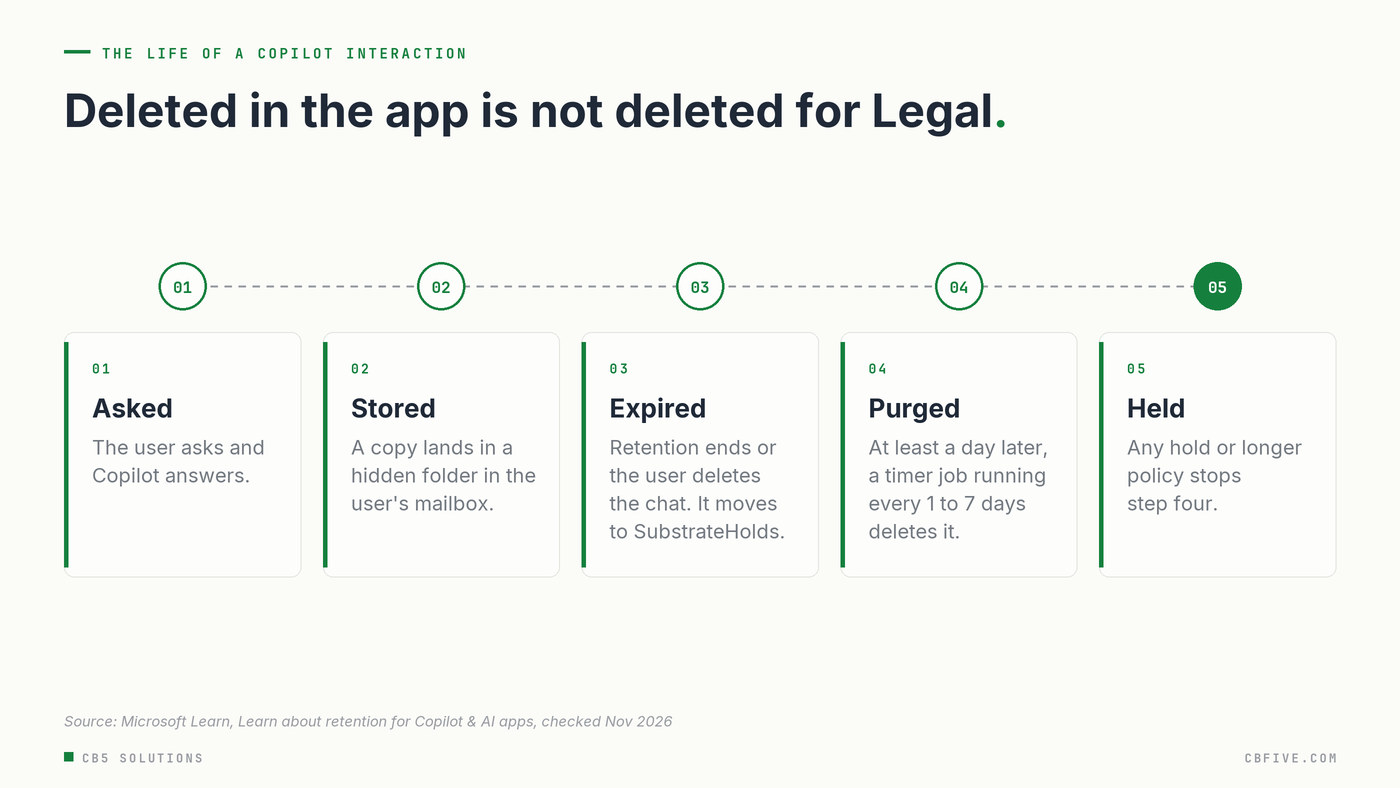
That matters in both directions. Legal can’t assume a short policy means the data is already gone when a letter arrives, and IT shouldn’t promise that a hold placed today will recover something the user deleted two weeks ago. The answer is in the search results, not the app.
Legal decides, IT makes it true
This is the split that makes AI safe to use at scale. The business, here Legal and records management, owns the decisions. IT owns the settings that enforce them and the evidence that they work.
Legal and records decide: whether AI interactions are records; the retention period by team or role; which AI tools must be preserved; and whether the referenced file version matters for your matters.
IT configures and proves: a retention policy on the right location, replacing any legacy combined policy deliberately; collection policies for the other sanctioned AI apps; the cloud-attachment retention label if Legal wants point-in-time files; and a test search that shows the result.
None of this slows Copilot down for the people using it. It means that when the letter arrives, the general counsel gets an answer instead of an estimate.
Getting Started
- Ask Legal the records question in writing. Are prompts and responses records, for whom, and for how long?
- Find the policy that covers Copilot today. Look for a legacy “Teams chats and Copilot interactions” policy, and decide whether to replace it with a policy on the Microsoft Copilot experiences location.
- List every sanctioned AI tool. For each one outside Microsoft 365 Copilot and Copilot Studio, confirm a collection policy is capturing content.
- Decide on referenced files. If Legal needs the version the user saw, set up the cloud-attachment retention label for Copilot.
- Run a test search before a real one. Use a test custodian, the Copilot activity condition and a review set. Keep the result as evidence.
The last post in our legal-hold series, Running It After Go-Live, covers keeping hold automation healthy. This is the content those holds now have to cover.
CB5 Solutions helps organizations understand the layers of AI, get the most from what they buy, and build an AI program that pays back inside their IT standards. We start every engagement with one business problem and a governance baseline. Let’s pick yours.