
How I used Claude Code to build a complete dyslexia reading app for my son — from zero lines of code to twelve practice modes, AI-powered tutoring, and a progressive web app that runs on his iPad.
My son Colton has dyslexia. He is one of the sharpest kids I know, but reading and spelling have always been a battle. We tried commercial apps. Most of them either felt like toddler-grade homework or did not understand how a dyslexic brain processes text. None of them adapted to his specific patterns, and none of them kept him engaged long enough to make real progress.
So I built one.
I am not an education technology developer. My day job is infrastructure — identity, tenant consolidation, Microsoft 365 migrations. But the same AI tools I work with professionally made it possible to build something well outside my domain. The tool that made it happen was Claude Code, Anthropic’s AI coding assistant.
The result is Colton’s Word Lab: a progressive web app with twelve distinct practice modes, an AI tutor that learns his spelling patterns over time, and display settings designed specifically for dyslexic readers. It runs as a PWA on his iPad with no app store required, works offline, and he picks it up without being asked.
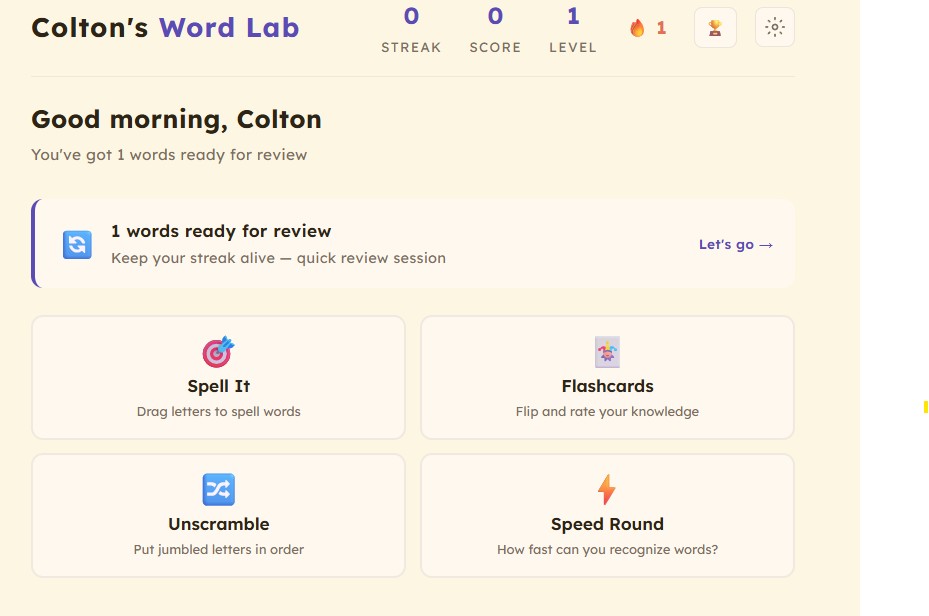
The home screen of Colton’s Word Lab, showing the Practice tab with Spell It, Flashcards, Unscramble, and Speed Round modes.
The Problem with Existing Tools
Dyslexia is not a reading problem — it is a language processing difference. Kids with dyslexia need structured, multi-sensory instruction that reinforces phonemic awareness, spelling rules, and decoding strategies. The gold standard is the Orton-Gillingham methodology: systematic, explicit, and sequential.
Most consumer apps do not follow it. They gamify memorization without teaching the underlying rules. They show a word, ask you to type it, and move on. That is fine for a neurotypical speller. For a kid with dyslexia, it just reinforces the frustration loop.
What Colton needed was an app that teaches why words are spelled the way they are, tracks which patterns trip him up, and adapts to his specific error profile — not a generic difficulty curve.
Architecture: Vanilla JavaScript, No Build Step
The app is deliberately simple in its architecture. No React, no framework, no bundler. Just vanilla JavaScript, a single HTML file with screen sections that toggle via CSS classes, and a static Node.js file server.
The file structure:
index.html— All twelve screens as div sections that show and hideapp.js— Main state machine, all game mode logic, event handlingwords.js— Five difficulty levels with 30 words each, including hints, syllable breakdowns, and context sentenceslessons.js— Structured Orton-Gillingham lessons with multi-slide teaching sequences and interactive exercisespassages.js— Age-appropriate reading passages with sentence arrays and comprehension questionsstorage.js— Spaced repetition engine (SM-2 variant) using localStorageai.js— Claude Haiku integration for real-time personalized tutoringsound.js— Web Audio API sound effects, plus browser and OpenAI text-to-speechbadges.js— Achievement system with unlock conditionsstyles.css— Full styling with dyslexia-specific display accommodations
I chose this architecture for two reasons. First, it is easy for anyone to modify — my wife uses Claude Code to add words and tweak features without needing to understand a framework. Second, it runs as a PWA with zero build tooling: the service worker caches the static files and the whole app works offline.
Twelve Practice Modes
Each mode targets a different aspect of reading and spelling:
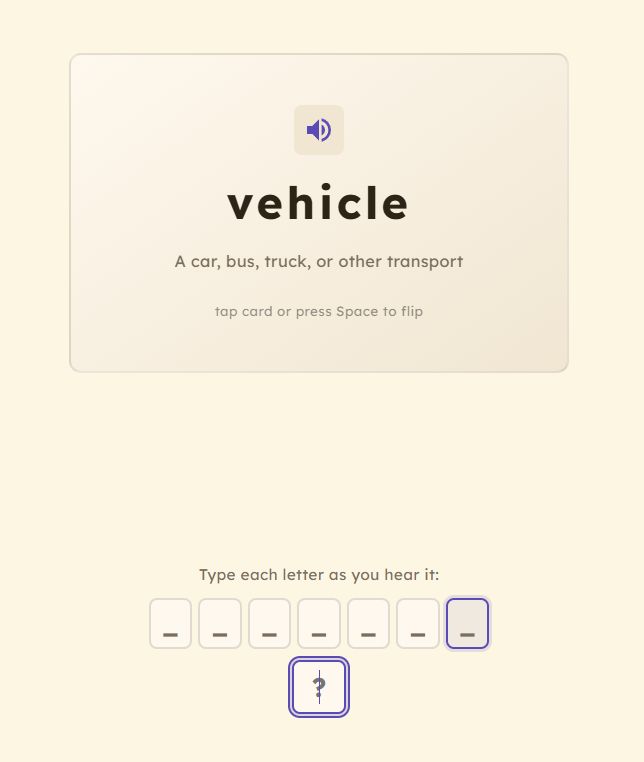
The Flashcards mode with spell-along — each letter is spoken and typed in sequence.
Spell It — Drag-and-drop letter tiles into the correct order. The bank includes extra distractor letters. Hints progressively reveal syllable breakdowns, and an AI tutor gives targeted feedback after each attempt.
Flashcards — Spaced repetition cards that flip between the word and its syllable breakdown. Includes a “spell along” mode where each letter is spoken and the student types along. Self-rating (tricky, okay, easy) feeds the SM-2 scheduling algorithm.
Scramble — Unscramble jumbled letters to form the word. Combines visual recognition with spelling recall.
Structured Lessons — This is the Orton-Gillingham core. Each lesson teaches a spelling rule (Silent E, consonant doubling, -tion vs -sion) through multi-slide instruction with interactive tap-the-pattern exercises, then guided practice, then a quiz. Lessons build sequentially.
Reading Mode — Uses the browser’s Speech Recognition API to listen while Colton reads aloud. The app compares his spoken words against the text sentence-by-sentence and gives word-by-word feedback — green for correct, red for missed, yellow for close. There is also a “Just Listen” mode with word-level highlighting that follows along like a karaoke track.
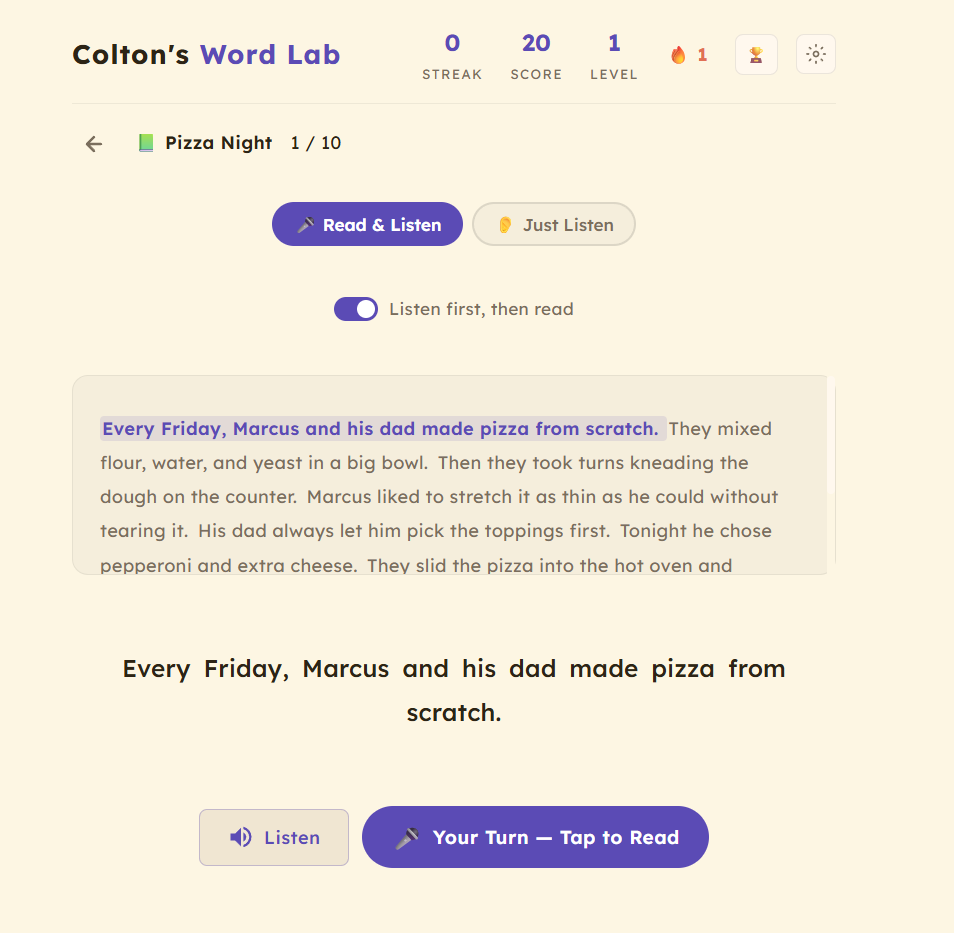
The Read Aloud mode — Colton reads along with highlighted text and gets word-by-word feedback.
Phoneme Game — Plays a sound and asks which letter combination makes it. Targets the sound-to-spelling mapping that dyslexic readers find hardest.
Morpheme Builder — Build words from prefixes, roots, and suffixes. Teaches word structure — why “unhappiness” is un + happy + ness, not a random sequence of letters.
Speed Drill — Timed sight-word recognition. A word flashes and the student taps “I know it” or “Need help.” Tracks personal bests and identifies words that need more review.
Dictation — Listen to a sentence and type it. Provides word-by-word comparison and highlights missed or misspelled words.
Writing Mode — Free writing with speech-to-text dictation and a spell-checker that flags words to review.
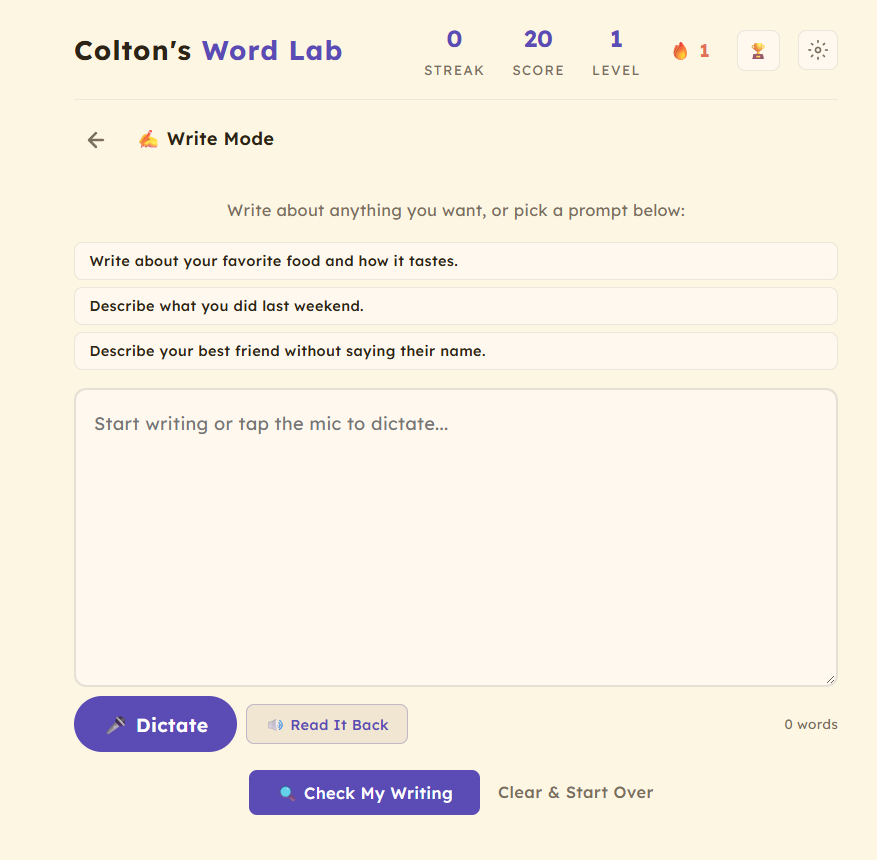
Write Mode — free writing with prompts, dictation, and a spell-checker.
b/d/p/q Training — Letter reversal practice, one of the most common dyslexia challenges. Shows letters in isolation and asks the student to identify them, building automaticity for the four most commonly confused letter shapes.
Spelling Bee — Classic spelling bee format with the word spoken aloud, a definition, and a context sentence. No visual cues — pure auditory-to-written spelling.
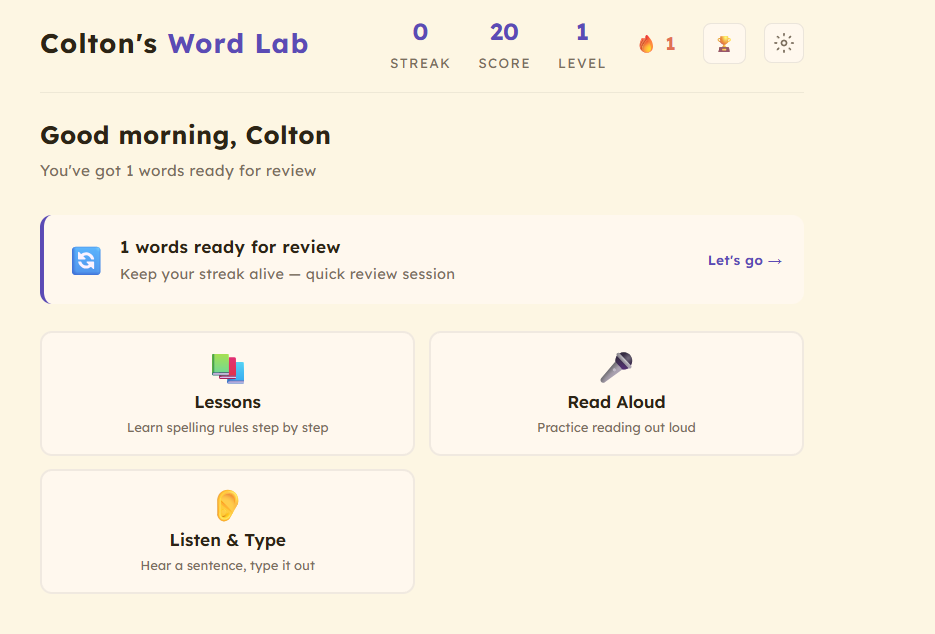
The Learn tab with structured Orton-Gillingham lessons and reading passages.
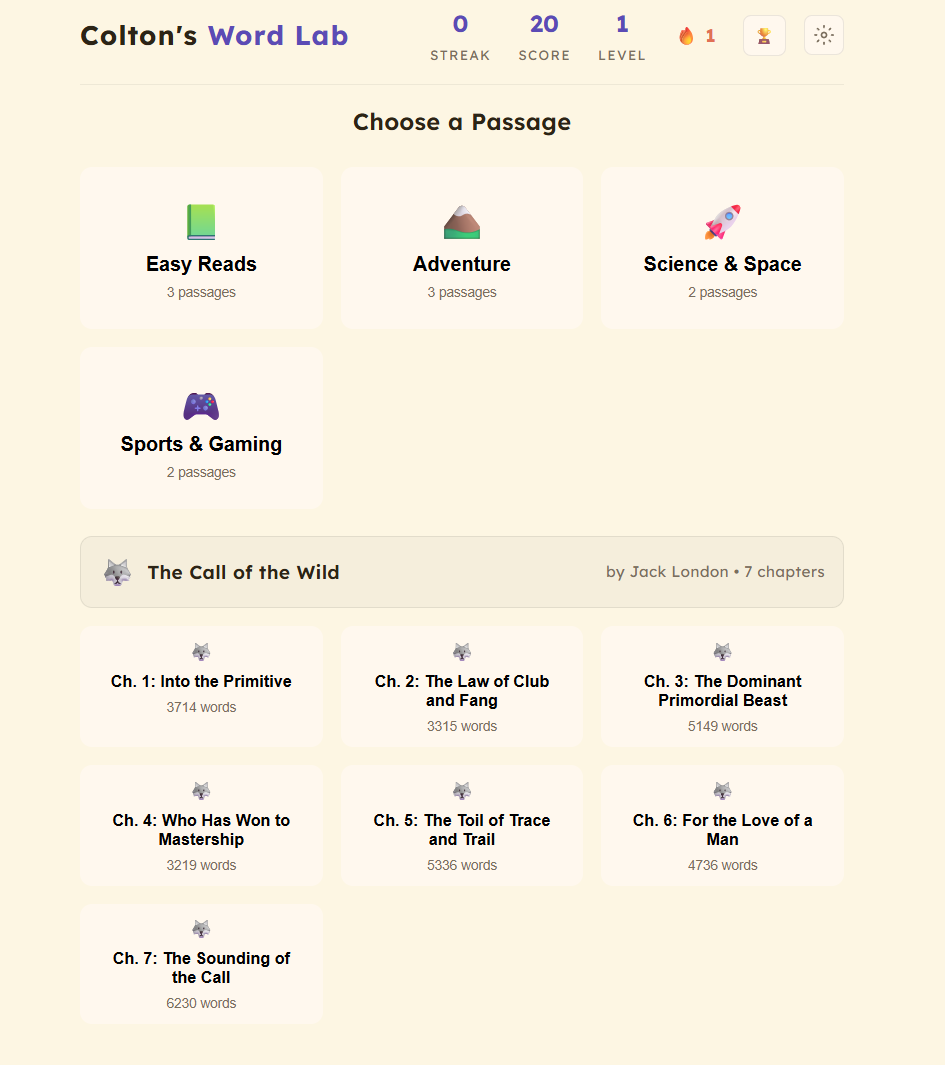
Reading passages organized by category, including full chapter books like The Call of the Wild.
The AI Tutor
This is the feature that made the biggest difference. The app calls the Claude API (using Claude Haiku for speed and cost) after every spelling attempt. But it does not just say “correct” or “try again.” It maintains a learning profile that tracks:
- Error patterns — letter swaps, double letter issues, silent letter omissions, ie/ei confusion, -tion/-sion confusion, missing or extra letters
- Difficult words — words that have been missed multiple times
- Mastered words — words spelled correctly on the first attempt
- Overall accuracy — percentage tracked over time
This profile is sent as context with every API call. The AI tutor knows that Colton tends to swap adjacent letters, drops silent letters in words like “knife” and “write,” and has recently mastered “rhythm” after struggling with it for weeks.
The system prompt instructs the AI to talk directly to Colton like a coach — encouraging, never condescending, and aware that he is a teenager who does not want baby talk. When he gets a word wrong, the AI gives one specific, memorable tip. When he gets it right after multiple tries, it celebrates his persistence.
After each full session, the AI produces a summary insight: what patterns improved, what to focus on next, and genuine encouragement based on real data.
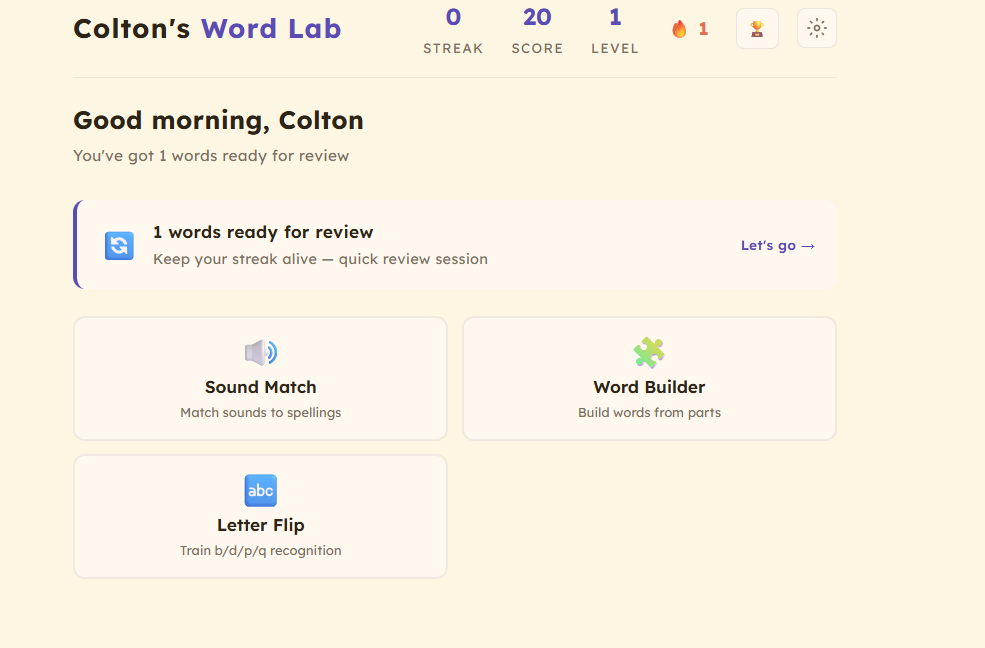
The Skills tab with Sound Match, Word Builder, and Letter Flip practice modes.
Dyslexia-Specific Display Settings
The display settings were not an afterthought. For many dyslexic readers, the visual presentation of text matters as much as the content.
The app supports:
- Font choices — Lexend (designed for reading fluency), OpenDyslexic (weighted bottoms to reduce letter flipping), and system sans-serif
- Adjustable letter spacing — dyslexic readers often benefit from wider spacing between characters
- Adjustable word spacing — same principle, at the word level
- Adjustable line height — prevents line-jumping, a common issue
- Background color options — cream (default), white, soft blue, soft green, soft pink, soft yellow, and dark mode. Many dyslexic readers find off-white backgrounds easier than pure white
- Bionic reading mode — bolds the first portion of each word, creating visual anchors that help the eyes track through text
- Reading ruler — dims all lines except the one being read, reducing visual overwhelm
Keeping Him Engaged: Badges, Streaks, and the Right Kind of Gamification
The app has a full badge system with 20+ achievements — “First Spark” for the first word, “On Fire” for a 5-word streak, “Apprentice” for completing the first lesson, all the way to “Marathon” for 500 total words. Badges pop up as notifications and are collected in a gallery.
There is also a daily practice streak tracker with a calendar view, a score system, and level progression. These are not gimmicks. For a kid who has spent years associating reading practice with frustration, having a tangible record of progress matters.
The key design choice: never punish failure. Wrong answers get encouraging feedback and a helpful tip. The streak counter resets silently. The tone is always “let’s figure this out” rather than “you got it wrong.”
Building It with Claude Code
I built this app almost entirely through conversation with Claude Code. My process:
- Describe what Colton needs in plain English — “He confuses b, d, p, and q. I need a training mode for that.”
- Claude Code writes the implementation — HTML, CSS, and JavaScript
- I test it with Colton, watch where he struggles or loses interest
- I describe what needs to change and Claude Code refactors
The entire app — roughly 15,000 lines across all files — was built this way. I did not need to be an ed-tech developer or a reading specialist. I needed to understand my son’s needs and be able to describe them clearly.
That is the real capability these AI coding tools unlock. Not that they write code faster (though they do). They let someone with domain knowledge in one area — in my case, knowing exactly what my dyslexic son needs — build software in a completely different area.
What Comes Next
The app is a progressive web app hosted on Railway. It works on any device with a browser. My wife now uses Claude Code to add new words, update passages, and tweak features herself — no programming background required. The project is open source on GitHub.
The best part is not the technology. It is watching Colton open the app on his own, work through a lesson, earn a badge, and walk away feeling like he accomplished something. That is the problem I was trying to solve, and that is the result that matters.
If you are a parent dealing with a similar situation, or if you work in education technology and want to discuss the approach, feel free to reach out.